
Published:
Last updated (content):
Last updated (prices):
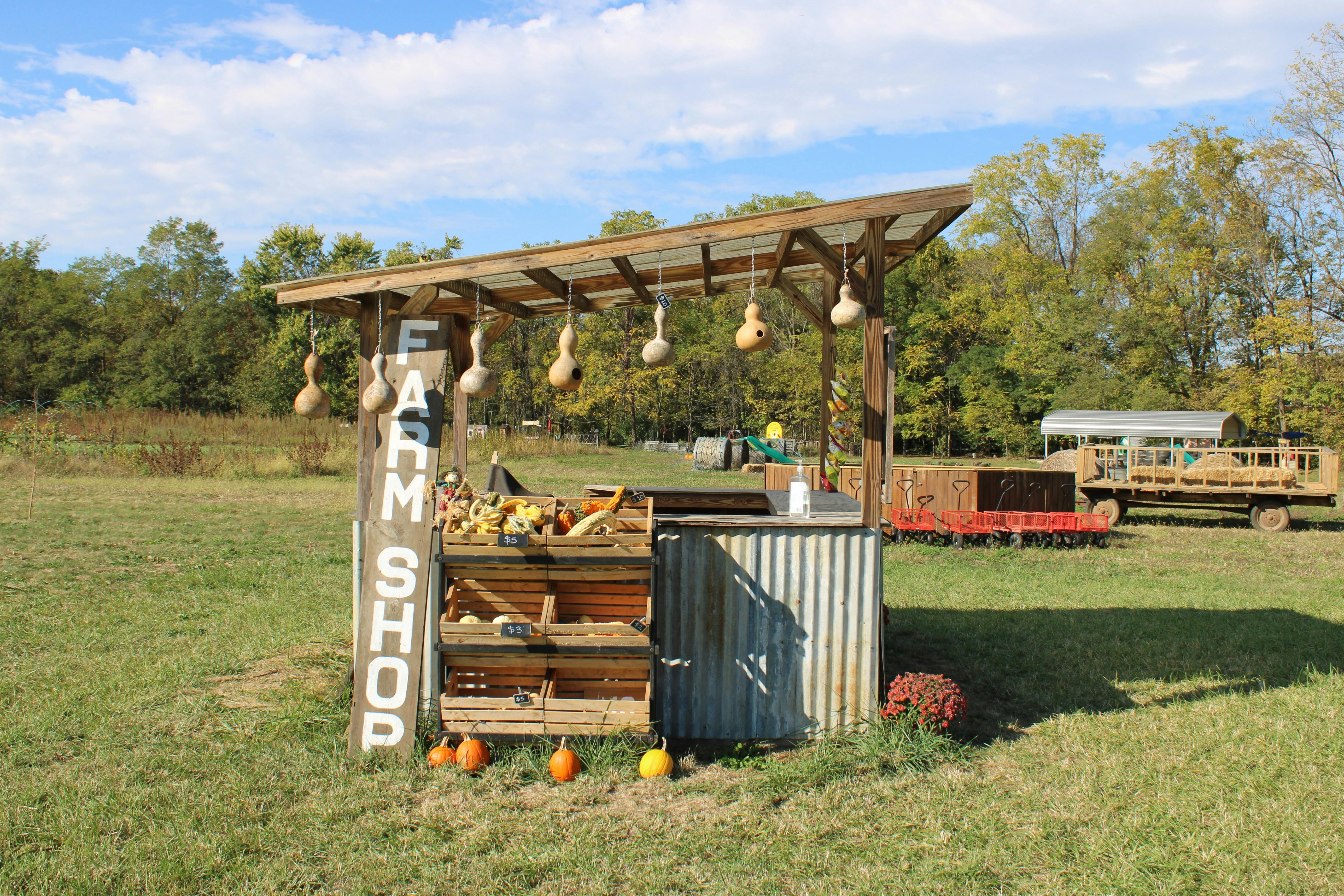
QR Pay is a QR code that leads to a payment page in the browser – where customers can pay using TWINT, Visa, Mastercard, Apple Pay, Google Pay, or PostFinance Pay. For farm shops and weekly markets in Switzerland, this is the most universal hardware-free solution: no terminal, no merchant smartphone needed, yet card payments are accepted. The transaction fee is 1.25% + CHF 0.30 per payment on the free Free plan.
This guide explains the difference between QR Pay and the classic TWINT QR sticker, shows practical application scenarios for direct marketing, and breaks down the costs.
1. What is QR Pay and how does it differ from the TWINT QR sticker?
The TWINT QR sticker opens the TWINT app directly. The customer enters the amount themselves and pays via TWINT. Other payment methods are not possible. QR Pay, on the other hand, opens a payment page in the smartphone browser. There, all activated payment methods are available: TWINT, Visa, Mastercard, Apple Pay, Google Pay, PostFinance Pay, and more. The customer selects the desired method, enters the amount (or the amount is already predefined), and completes the payment.
The crucial difference: QR Pay is payment method-neutral. A single QR code covers all payment methods. This makes QR Pay particularly valuable for farm shops and market stalls that serve both regular Swiss customers (TWINT) and tourists (Visa, Apple Pay).
What happens if someone scans the QR code with the TWINT app?
An important practical point: If a customer scans the QR Pay code with the TWINT app instead of the smartphone camera, TWINT recognizes the code and processes the payment directly via TWINT. The customer does not have to open the browser first. This works in parallel: Those who have TWINT pay directly via TWINT. Those without TWINT scan with the camera and land on the payment page.
2. How QR Pay works: Customer scans, chooses payment method, pays
The process from the customer's perspective is remarkably simple: The customer sees the QR code on the shelf, on the counter, or on a display. They open the smartphone camera and scan the code. The browser opens a payment page. There, either a predefined amount is displayed (e.g. "Egg carton CHF 6") or the customer selects the product from a list. Then, they choose the payment method – TWINT, card, Apple Pay – and confirm. The payment is completed, and they can optionally receive a receipt by email.
For the merchant: You create the QR code once online (e.g. via the Payrexx Dashboard), print it out, and display it. After that, no further operation is needed. Every transaction appears automatically in the Dashboard.
3. Which payment methods are available via QR Pay
The available payment methods depend on the provider and the activated plan. Via Payrexx QR Pay, the following methods are available in Switzerland: TWINT, Visa (debit and credit), Mastercard (debit and credit), Apple Pay, Google Pay, Samsung Pay, PostFinance Pay, and Click to Pay. Thus, a single QR code covers all common Swiss payment methods plus international cards.
4. QR Pay in the farm shop: Staffed, unstaffed, and seasonal
Self-service farm shop (unstaffed)
QR Pay is the strongest option for unstaffed farm shops: One QR code per product on the shelf (e.g. "Honey CHF 12") or one QR code with a product list through which the customer selects their product. The amount is predefined – this prevents underpayment, which is not possible with the standalone TWINT QR sticker. No electricity, no internet needed on-site – the customer's smartphone handles everything.
Staffed farm shop business
In a staffed farm shop, QR Pay complements the terminal or Tap to Pay. A QR code on the counter or at the checkout offers an additional payment option – particularly useful during queues or when the terminal is currently in use.
Seasonal market stall
Strawberries in June, asparagus in April, pumpkins in October: For seasonal stalls, QR Pay is ideal because no terminal needs to be rented or purchased. You print the QR code, put it up, and take it down again after the season. No fixed costs during months without sales.
5. QR Pay at the weekly market: Fast checkout without a device
At the weekly market, you are personally at the stall. QR Pay works here as an additional channel alongside cash and terminals. A QR code on a stand or laminated on the counter allows customers to pay independently – while you take the next order. Especially useful during rush hours: Instead of processing each payment individually on the terminal, multiple customers can pay simultaneously via QR Pay.
Practical tip: Position the QR code so that it is clearly visible and can be scanned at close range. A laminated A5 display stand on the counter works well. Label it with "Pay here: TWINT, Card, Apple Pay" and the accepted payment symbols.
6. Costs: What QR Pay costs per transaction
Method | TWINT QR sticker | Payrexx QR Pay | Payment Link |
Payment methods | TWINT only | TWINT, Visa, MC, Apple Pay, Google Pay, PostFinance, among others | Like QR Pay (link instead of code) |
Fee (TWINT) | Approx. 1.30% | 1.25% + CHF 0.30 (QR Pay) | 1.30% + CHF 0.30 (Free) / 1.25% + CHF 0.18 (Standard) |
Fee (Card) | Not possible | 1.25% + CHF 0.30 (QR Pay) | 2.50% + CHF 0.30 (Free) / 1.65% + CHF 0.18 (Standard) |
Amount control | No (customer enters manually) | Yes (predefined amount) | Yes |
Tourists | No | Yes (card, Apple Pay) | Yes |
Costs at CHF 12 (TWINT) | CHF 0.16 | CHF 0.45 (QR Pay) | CHF 0.34 (Free) / CHF 0.33 (Standard) |
For micro-amounts, the TWINT QR sticker is cheaper: For an egg carton for CHF 6, the sticker costs CHF 0.08, QR Pay CHF 0.38. In return, QR Pay covers all payment methods, predefines the amount, and records every payment in the Dashboard – with no monthly fee on the Payrexx Free plan.
7. Combining QR Pay: Interplay with terminal and Tap to Pay
QR Pay replaces neither a terminal nor Tap to Pay, but complements both. Typical combinations for direct marketing:
Unstaffed farm shop: QR Pay as the primary solution (no terminal required). Weekly market: Terminal or Tap to Pay for fast checkout, QR Pay as a secondary channel during queues. Seasonal stall: QR Pay alone – no fixed costs outside the season. Farm shop + online shop: QR Pay transactions and online orders run through the same Dashboard.
Important: With Payrexx, all transactions – whether QR Pay, Tap to Pay, terminal, or online – appear in the same Dashboard. Payouts are bundled to a single bank account. This considerably simplifies accounting compared to several separate systems.
8. Checklist: Set up QR Pay for your farm shop or weekly market
Open a Payrexx account (Free plan is sufficient) and complete KYC verification.
Activate QR Pay in the Dashboard and configure the payment page: products, prices, logo.
Generate QR code: Per product (static) or as a dynamic product list.
Print QR code and mount it weatherproof: Laminated, in acrylic glass, or as an aluminium sign.
Test legibility: Scan the QR code from various angles and in sunlight.
Display payment symbols at the stall or shelf: "Pay here: TWINT, Visa, Mastercard, Apple Pay".
Perform a test payment: Scan with your own smartphone and complete a test payment.
Update prices regularly: For dynamic QR codes online in the Dashboard, for static ones print a new code.
Check transactions in the Dashboard: Set payout frequency (daily/weekly).
How to make your farm shop or market stall cashless with Payrexx QR Pay
Payrexx QR Pay is a QR-based payment solution designed specifically for small sales and self-service. You create a payment page with your products and prices in the Payrexx Dashboard, generate a QR code, and print it out. Customers scan the code and pay with TWINT, Visa, Mastercard, Apple Pay, Google Pay, or PostFinance Pay – via a hosted payment page, without downloading an app.
The transaction fee is 1.25% + CHF 0.30 – that is CHF 0.38 for a purchase of CHF 6. The Free plan costs CHF 0 per month. QR Pay can be combined with Tap to Pay, POS terminals, Payment Links, and the Payrexx online shop – all transactions arrive in the same Dashboard, and payouts are bundled to your bank account.
Get started at payrexx.com/products/qr-pay – create your QR code, print it, and start collecting payments.
FAQs on QR-Pay for farm shops and weekly markets
What is the difference between QR-Pay and a TWINT QR sticker?
The TWINT QR sticker exclusively accepts TWINT. QR-Pay leads to a payment page where all common payment methods are available – TWINT, Visa, Mastercard, Apple Pay, Google Pay and more. QR-Pay also offers amount control: you specify the price.
See detailed answer
Do you need a website to use QR-Pay?
No. QR-Pay works via a hosted payment page provided by the payment service provider. You do not need your own website, an app, or any prior technical knowledge.
See detailed answer
How do you change the prices when your product range changes?
With dynamic QR codes, you change prices and product range online in the Dashboard – the physical QR code remains the same. With static QR codes, you have to print a new code when the price changes.
See detailed answer
Does QR-Pay also work for tourists without TWINT?
Yes. This is a key advantage compared to the TWINT QR sticker. Tourists scan the QR code with their smartphone camera and pay
See detailed answer
Is QR-Pay really cheaper than a TWINT QR sticker?
Not quite. Payrexx QR Pay costs 1.25% + CHF 0.30 per transaction, while the TWINT QR sticker costs around 1.30% with no fixed fee. For a purchase of CHF 12: QR Pay is CHF 0.45, TWINT sticker approx. CHF 0.16. In return, QR Pay also offers card payments, wallets, and amount verification.
See detailed answer
Can you use QR-Pay and a TWINT QR sticker at the same time?
Yes, this is even a common combination. Since QR-Pay also includes TWINT, you can consolidate to a single QR code in the long term - TWINT users scan it with the TWINT app, everyone else with the camera.
See detailed answer